2021年11月12日

win10下安裝MQTT Broker服務

win10下安裝MQTT Broker服務

參考文章:https://swf.com.tw/?p=1005

1.官網下載程式:https://mosquitto.org/download/

個人下載64位元的.exe,下載後安裝。安裝好程式集中什麼也沒有。

 2.停用Mosquitto Broker服務

在本機上按右鍵/管理,找到服務/mosquitto服務,它的預設是自動,但未啟動,按下停用鈕。


3.到防火牆中把1883,1884埠打開。

在防火牆的進階設定/新增規則,選連接埠,輸入1883,1884,允許連線,所有網路連線都打勾,名稱輸入MQTT。


4.修改mosquitto.conf

把c:\program files\mosquitto\mosquito.conf拷一份到文件中,使用記事本打開,在最後面加上以下內容

listener 1883
protocol mqtt
listener 1884
protocol websockets
allow_anonymous true
socket_domain ipv4 
編輯好記得複製貼回 c:\program files\mosquitto\

5.重啟mosquitto Broker服務:

以最高權限開啟命令視窗,進入c:\program files\mosquitto資料夾
執行mosquitto -v -c mosquito.conf 


2021年11月10日

github資料

 1.網址:https://github.com/

2.註冊:點選右上方Sign up,依續輸入email 密碼 username ..要不要用mail收資料..驗證是不是真人...收email,輸入認證code ,最後成功畫面如下:


3. 把別人的網站fork一份:

參考文章

https://git-scm.com/book/zh-tw/v2/GitHub-%E5%8F%83%E8%88%87%E4%B8%80%E5%80%8B%E5%B0%88%E6%A1%88

把osep web serial api fork一份吧

https://github.com/estea8968/osep_web_serial

按右上方的fork按鈕,你就有一份一模一樣的資料了。


4.專案設定web位置:

https://ithelp.ithome.com.tw/articles/10171911

在專案位置,按下右邊Settings設定鈕,再選左邊Pages按鈕,選一個佈景。在source按鈕選master。約過了3-5分鐘,按下連結,就會看到網頁了。但它不是scratch的網頁。按下左上角,code按鈕,再按下右邊設定圖示(小的),可以在這裡告訴別人,要連app資料夾。


5.更新github


6.github常用指令

git add .

git commit -m "說明文字"

git push -u origin


7.github token

https://iter01.com/611911.html

現在不能再用帳密更新上傳了,必需使用token。上傳時第一次打密碼時,要輸入token的值,很長,建議用貼的,申請完記起來,這個token最長可以用一個月,下個月要再申請一之。


2021年11月6日

scratch3寫入google試算表

使用scratch3積木寫入google試算表。
1.先建立一個試算表,目前只開放寫入3個欄位,欄位名稱不拘。
2.點選工具/指令碼編輯器
3.貼上下列內容並儲存。檔案ID是試算表網址中/d/後的那串文字,例如https://docs.google.com/spreadsheets/d/6usMPxfIe4MzwP9PY/edit#gid=0

function doGet(e) {
  var params = e.parameter;
  var column1 = params.c1;
  var column2 = params.c2;
  var column3 = params.c3;
  var column4 = params.c4;
  var column5 = params.c5;
  var column6 = params.c6;
  var column7 = params.c7;
  var column8 = params.c8;
  var date = new Date();
  var now = date.getFullYear()+'/'+(date.getMonth() + 1)+'/'+date.getDate() + ' '+ date.getHours() + ':' + date.getMinutes() + ':' + date.getSeconds();


  //sheet資訊
  var SpreadSheet = SpreadsheetApp.openById("檔案ID");
  var Sheet = SpreadSheet.getSheets()[0];
  var LastRow = Sheet.getLastRow();

  //存入資訊
  Sheet.getRange(LastRow+1, 1).setValue(column1);
  Sheet.getRange(LastRow+1, 2).setValue(column2);
  Sheet.getRange(LastRow+1, 3).setValue(column3);
  Sheet.getRange(LastRow+1, 4).setValue(column4);
  Sheet.getRange(LastRow+1, 5).setValue(column5);
  Sheet.getRange(LastRow+1, 6).setValue(column6);
  Sheet.getRange(LastRow+1, 7).setValue(column7);
  Sheet.getRange(LastRow+1, 8).setValue(column8);
  Sheet.getRange(LastRow+1, 9).setValue(now);
 
  //回傳資訊
  return ContentService.createTextOutput("ok");
}

4.點選發佈/部署為網應用程式。
5.新增版本號、選擇所有人可以使用app,按下更新後複製起網址。
每一次異動程式碼都需要再做一次發佈動作。

6.回到scratch中開啟JSON擴充積木,拉出積木。先輸入你要送出的資料(最多三欄),再貼上複製的網址。如果是先貼上網址會造成積木變長,不方便輸入送出資料。這樣在google試算表中看到寫入的資料。


2021年11月4日

MQTT記事


參考:https://ithelp.ithome.com.tw/articles/10226629

1.安裝MQTT server 

sudo apt install mosquitto
2.安裝MQTT client
sudo apt install mosquitto-clients 
 
mosquitto_sub : 訂閱
mosquitto_pub : 發布
-d : debug 模式 => debug
-t : 訂閱的主題 => topic
-h : Broker 的 IP => host
-m : 發送的內容 => message
-v : 顯示主題名稱 => verbosely
 

終端機-1 (Subscribe)訂閱

mosquitto_sub -d -t Try/MQTT 
或
mosquitto_sub -d -h 54.xx.xx.xx -t Try/MQTT

終端機-2 (Publish)發佈

mosquitto_pub -d -t Try/MQTT -m "Try Message"
mosquitto_pub -d -h 54.xx.xx.xx -t Try/MQTT -m "Try Message"

使用帳密

mosquitto_passwd -c <passwordfile> <username>
指定密碼檔案 
sudo mosquitto_passwd -c /etc/mosquitto/passwd try   
這樣會覆蓋掉原來的passwd檔。先編一個帳密碼
vim usr.pwd
內容如下
user:123456
student:123
使用指令轉成加密檔 
mosquitto_passwd  -U usr.pwd 
sudo mv  usr.pwd /etc/mosquitto/
 

設定ACL(Access Control List)

sudo vi /etc/mosquitto/acl 
內容如下 
# 用戶 try 能夠讀寫 Try/MQTT這個主題
#user try 
#topic readwrite Try/MQTT
(設定後失敗,先註解掉) 

在mosquitto.conf 參數檔案,開啟模式

打開 mosquitto.conf 參數檔案
設定檔位置在 /etc/mosquitto/mosquitto.conf

增加

listener 1883
protocol mqtt
listener 8081 127.0.0.1
protocol websockets
allow_anonymous true
這樣js 才能用ws://127.0.0.1:8081連線 
 
password_file /etc/mosquitto/passwd
per_listener_setting true
acl_file /etc/mosquitto/acl
 
per_listener_setting參數設成true,代表個別設置每個偵聽器物件的安全性: 
allow_anonymous 允許匿名存取,設成false 代表需使用者名稱。
password_file 帳號密碼的檔案
acl_file 對於使用者權限的設置檔案
 
重啟服務
sudo service mosquitto stop
sudo service mosquitto start 
訂閱 
mosquitto_sub -v -d -t Try/MQTT -u "try" -P "xxxx"  
mosquitto_sub -d -t Try/MQTT 
mosquitto_sub -d -h 54.xx.xx.xx -t Try/MQTT
發佈 
mosquitto_pub -d -t Try/MQTT -m "Try Message"  
mosquitto_pub -d -h 54.xx.xx.xx -t Try/MQTT -m "Try Message"


 測試了一下一個網站還不錯:

http://mqttgo.io/

使用osep離線版線線網址為:

ws://MQTTGO.io:8000/mqtt


2021年9月27日

ventoy另類思維

 ventoy是很好用的工具,自已另類想法:

1.ventoy安裝到硬碟

2.用virtualbox安裝系統,把vhd複製(如果要去掉ssid,virtualbox的系統工具中有複製工具可以使用)出來

3.把這個vhd在winpe下做出一級副本(差異備份只有4MB)。直接複製一級副本為另一個檔案為平常開機使用的vhd。

4.把平常開機的vhd設成預設開機並把開機時間設成1秒。

一般使用者正常使用,有問題進入winpe,出事的檔案刪掉再複製一級副本成開機vhd,完工。

平常資訊組只要做第4個就可以了。遇到到升級就要動到最原始vhd,再産生一級副本,再複製成開機的vhd.

ventoy 要使用 vhd開機需要把ventoy所在碟磁第一分割區格式化為ntfs,及在磁碟下增加一個ventoy資料夾 並且把ventoy_vhdboot.img放入其中。可以參考文章:https://www.ventoy.net/cn/plugin_vhdboot.html

 ventoy設開機預設選項及開機秒數做法也很簡單,在磁碟的下 ventoy資料夾下增加一個ventoy.json檔案。內容為

{
    "control": [
        { "VTOY_MENU_TIMEOUT": "10" },
        { "VTOY_DEFAULT_IMAGE": "/vhd/win10_tmp.vhdx" }
    ]
}

參考文章:https://www.ventoy.net/en/plugin_control.html 

産生一級副本方式:

在winpe下使用最高權限開啟命令視窗,執行

diskpart

create vdisk file="d:\vhd\xxxx.vhd" parent="d:\vhd\source.vhd"

參考文章:https://docs.microsoft.com/en-us/previous-versions/windows/it-pro/windows-server-2012-r2-and-2012/gg252579(v=ws.11)

 https://docs.microsoft.com/zh-tw/windows-hardware/manufacture/desktop/boot-to-vhd--native-boot--add-a-virtual-hard-disk-to-the-boot-menu

https://class.tn.edu.tw/modules/tad_web/news.php?WebID=1384&NewsID=7363

 http://andy51002000.blogspot.com/2017/07/vhd.html

winpe製作安裝參考:

https://docs.microsoft.com/zh-tw/windows-hardware/manufacture/desktop/winpe-create-usb-bootable-drive


2021年9月15日

google drive

 記錄一下,好像不錯用。

https://blog.steveyi.net/linux-mount-googledrive-not-required-brain/

 sudo add-apt-repository ppa:alessandro-strada/ppa 

sudo apt-get update 

sudo apt-get install google-drive-ocamlfuse 

mkdir ~/GoogleDrive

google-drive-ocamlfuse ~/GoogleDrive

fusermount -u ~/GoogleDrive  

google-drive-ocamlfuse –help

2021年9月2日

esp32 arduino ide 編譯error

參考文章:https://youyouyou.pixnet.net/blog/post/119410732


首先在進入「檔案>偏好設定」,在「額外的開發板管理員網址」裡面加上以下的網址:

https://dl.espressif.com/dl/package_esp32_index.json 

接著再到選單「工具>開發板>開發板管理員」,尋找「es32」,就能找到我們要的選項,安裝它就可以了!

再來就找得到NodeMCU-32S

 arduino ide 編譯時出現 error

.arduino15/packages/esp32/tools/esptool_py/2.6.1/esptool.py", line 37, in <module>
      import serial
      ImportError: No module named serial
解決方式:
sudo apt install python-is-python3
pip3 install pyserial
 
再編譯,錯誤訊息就沒了。


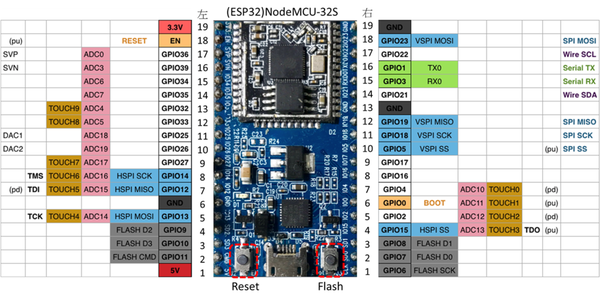
另一款腳位圖


  • GPIO 34,35,36,39:Input only(不能作為輸出腳位)
  • GPIO 0,6,7,8,9,10,11:系統用,勿使用(淺灰色標示)
  • GPIO 18:重開機

還有一些個人遇到的問題(不清楚原因,但會搞死你)

  • 1. DHT11不可以用GPIO 5、26
  • 2. GPIO 12, 2燒錄時不可接任何裝置,請空接,燒錄完成後,再接回,否則會上傳失敗。
  • 3.WiFi啟動後,2,4,12,13,14,15,25,26,27僅能數位讀取,不可類比


有一款esp32腳位標在背面,插入擴充板後完全看不到。


oled qrcode

可以參考這篇

https://techtutorialsx.com/2017/12/16/esp32-arduino-ssd1306-oled-drawing-a-qr-code/